
Close Menu
GulfNewsNation
  • News
  • Economy
  • Business
  • Gold Price Today
  • Historical Gold Rate in Dubai
Facebook X (Twitter) Instagram
Trending
  • Toyota Corolla Price in UAE 2026: Latest Variants, Features & Buying Guide
  • Nissan Sunny Price in UAE – Full Specs, Features, Mileage & Latest Updates
  • Physical Gold vs Digital Gold in UAE: Which Investment Option Is Better for You?
  • Desert Adventures in the Middle East: How the Right Off-Road Tyres Can Change Your Drive
  • Best SUV Under 100000 AED in Dubai UAE – Top Budget SUVs With Price, Features & Mileage
  • List of Electric Cars in UAE – Prices, Features & Best EV Models
  • Toyota Land Cruiser Prado 2026 Price in UAE – Full Specs, Features & Latest Updates
  • Toyota Land Cruiser 2025 Price in UAE – Full Specs, Features, Mileage & Latest Updates
Facebook X (Twitter) Instagram
GulfNewsNation
Subscribe
Monday, July 6
  • News
  • Economy
  • Business
  • Gold Price Today
  • Historical Gold Rate in Dubai
GulfNewsNation
Home»Technology»Smartphones»How to Screen Record on iPhone with Sound, Steps & Hidden Tricks
Smartphones

How to Screen Record on iPhone with Sound, Steps & Hidden Tricks

Gulf News Nation DeskBy Gulf News Nation DeskApril 7, 2026Updated:April 15, 2026No Comments4 Mins Read
Facebook Twitter Pinterest LinkedIn Tumblr Email Telegram Copy Link
how to screen record on iphone
Share
Facebook Twitter LinkedIn Pinterest Email Copy Link

Learning how to screen record on iPhone is essential, whether you’re creating tutorials, recording gameplay, saving videos, or troubleshooting issues. With built-in tools from Apple, you can record your screen in seconds—but many users still don’t know how to enable audio or access hidden features.

In this complete guide, you’ll learn how to screen record on iPhone with sound, step-by-step instructions, tips, fixes, and pro tricks to improve your recordings.

What is Screen Recording on iPhone?

Screen recording is a built-in feature in devices running iOS that allows you to capture everything happening on your screen in real time.

It works across:

  • Apps and games
  • Video playback
  • Settings navigation

This feature is widely used for:

  • Creating tutorials
  • Recording gameplay
  • Capturing bugs for support
  • Saving important content

How to Enable Screen Recording on iPhone

Before recording, you need to enable the feature.
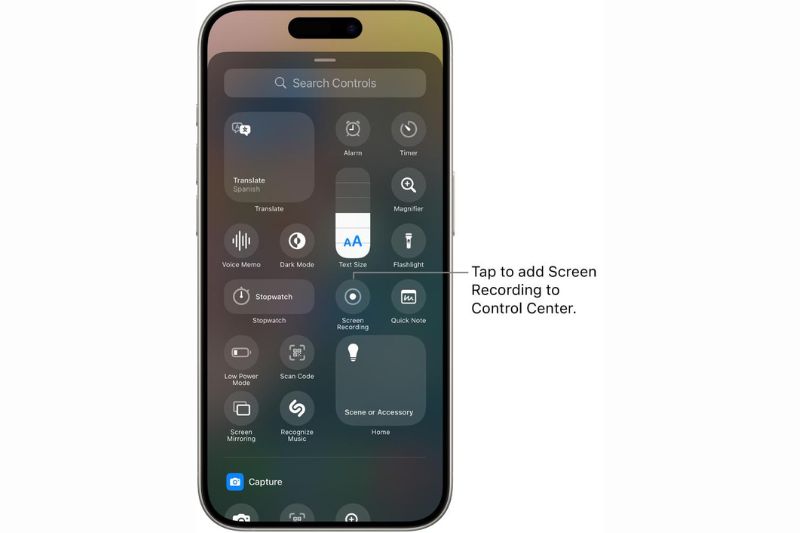
Follow these steps:

  1. Open Settings
  2. Tap Control Center
  3. Scroll to Screen Recording
  4. Tap the + icon

👉 Once added, it will appear in your Control Center for quick access.

Also Read: How to Restart iPhone

How to Screen Record on iPhone (Step-by-Step)
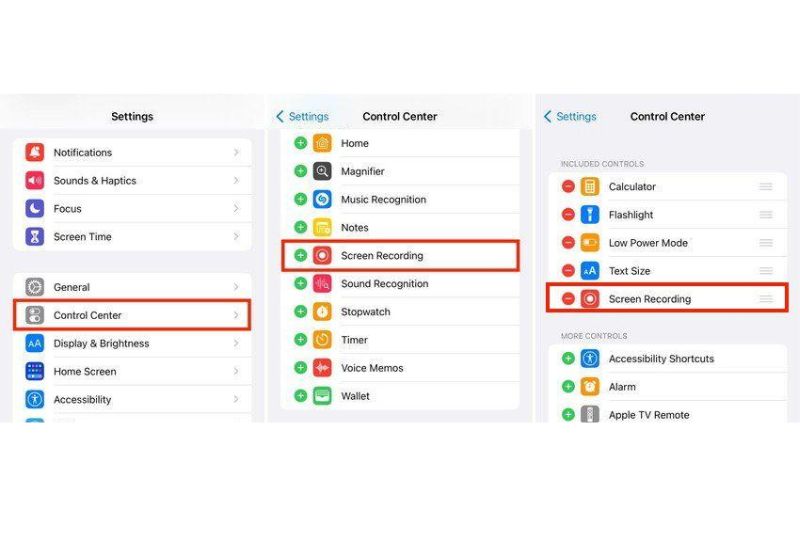
Steps to start recording:

  1. Swipe down from the top-right corner
  2. Open Control Center
  3. Tap the Screen Record (●) button
  4. Wait for the 3-second countdown
  5. Start using your iPhone

To stop recording:

  • Tap the red bar at the top → Stop
    OR
  • Tap the record button again in Control Center

👉 Your recording will automatically save to the Photos app.

Also Read: iPhone 18 Release Date in UAE

How to Screen Record on iPhone with Sound
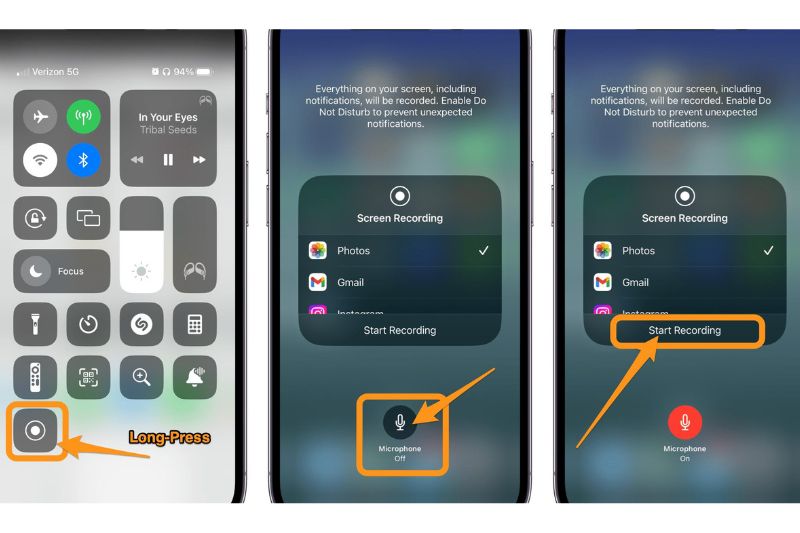
Many users miss this important step-

To enable audio:

  1. Open Control Center
  2. Press and hold the Screen Record button
  3. Tap Microphone ON
  4. Tap Start Recording

This allows you to:

  • Record voice-over tutorials
  • Add commentary
  • Explain steps clearly

Where Are Screen Recordings Saved?

All recordings are automatically saved in:

Photos App → Recents / Videos

From there, you can:

  • Edit videos
  • Trim clips
  • Share to WhatsApp, Instagram, or YouTube

Also Read: Upcoming Smartphones & Launches in UAE (2026)

How to Edit Screen Recordings on iPhone

Quick editing steps:

  1. Open Photos app
  2. Select your recording
  3. Tap Edit
  4. Drag sliders to trim
  5. Tap Done

👉 Perfect for removing start/stop moments.

Hidden Screen Recording Tricks on iPhone

These tricks can improve your recording quality significantly:

✅ Turn on Do Not Disturb / Focus Mode to block notifications

✅ Record in landscape mode for a better video format

✅ Use microphone + system audio for tutorials

✅ Close background apps for smoother performance

✅ Record in good lighting for better visibility

Screen Recording Not Working? (Fixes)

1. Screen Recording Not Showing

  • Go to Settings → Control Center → Add it again

2. No Sound in Recording

  • Make sure Microphone is ON

3. Recording Stops Automatically

  • Check storage space
  • Disable restrictions

4. Black Screen in Some Apps

  • Apps like banking or streaming may block recording

When Should You Use Screen Recording?

Screen recording is useful in many situations:

  • Creating social media content
  • Recording tutorials or classes
  • Reporting bugs
  • Saving temporary content

👉 It’s especially popular among content creators, students, and professionals.

FAQs – Screen Recording on iPhone

How to screen record on iPhone without the red bar?

You cannot fully remove it, but it disappears in the final recording.

Can I screen record with internal audio only?

Mostly no—iPhone records system + mic audio, but some apps restrict sound.

Why is my screen recording lagging?

Close background apps and ensure sufficient storage.

Can I record Netflix or YouTube?

Some apps block recording, resulting in a black screen.


Final Thoughts

Now that you know how to screen record on iPhone, you can easily capture tutorials, gameplay, or important content in just a few taps. With the added ability to record audio and use hidden tricks, your recordings can look more professional and useful.

👉 If you’re planning to buy the iPhone 18 Series in the UAE, explore our detailed article: iPhone 18 Release Date in UAE (2026)

Apple iPhone iPhone 18 iPhone Screen Record
Follow on Google News Follow on Flipboard
Share. Facebook Twitter Pinterest LinkedIn Tumblr Email
Previous ArticleiPhone 18 Release Date in UAE (2026): Price in Dubai & Key Features
Next Article How to Restart iPhone: All Models, Force Restart & Fixes
Gulf News Nation Desk
  • Website

This article is authored by a verified professional contributor at GulfNewsNation.com and thoroughly reviewed by our Editorial Team in accordance with strict editorial standards. Our review process prioritizes accuracy, credibility, transparency, and responsible journalism to provide readers with reliable and trustworthy information.

Related Posts

Huawei Mate 80 Pro Just Launched – 50MP Camera, 120Hz Display & Massive Battery

May 6, 2026

Samsung Galaxy M35 5G High Performance 200MP Camera and 120Hz Display for Just AED1,000

April 15, 2026

How to Restart iPhone: All Models, Force Restart & Fixes

April 7, 2026

iPhone 18 Release Date in UAE (2026): Price in Dubai & Key Features

April 6, 2026

Upcoming Smartphones & Launches in UAE (2026)

April 6, 2026

Infinix ‘300MP Camera’ Smartphone With 7500mAh Battery

February 6, 2026
Add A Comment
Leave A Reply Cancel Reply

GulfNewsNation

GulfNewsNation is a trusted UAE news platform delivering data-driven updates on gold prices, business trends, economy, and market insights.

UAE

  • News
  • Education
  • Emergencies
  • Government
  • Environment
  • Transport
  • Weather

Business

  • Finance
  • Economy
  • Auto
  • Aviation
  • Corporate
  • Markets
  • Property
  • Tech

Entertainment

  • Gaming
  • Movies
  • OTT
  • Music
  • Local Events
  • Things to do in the UAE

Lifestyle

  • Beauty
  • Fashion
  • Food
  • Health
  • Mental Health
  • Parenting
  • Travel

Sports

  • Cricket
  • Football
  • Golf
  • Horse Racing

About Us

Contact Us

Write for Us

Editorial Policy

Privacy Policy

Terms & Conditions

© GulfNewsNation. All Rights Reserved. Powered by GulfNewsNation | UAE Market & Gold News
GulfNewsNation

GulfNewsNation is a trusted UAE news platform delivering data-driven updates on gold prices, business trends, economy, and market insights.

UAE

Business

  • News
  • Education
  • Emergencies
  • Government
  • Environment
  • Transport
  • Weather
  • Finance
  • Economy
  • Auto
  • Aviation
  • Corporate
  • Markets
  • Property
  • Tech

Entertainment

Lifestyle

  • Gaming
  • Movies
  • OTT
  • Music
  • Local Events
  • Things to do in the UAE
  • Beauty
  • Fashion
  • Food
  • Health
  • Mental Health
  • Parenting

Sports

Quick Link

  • Cricket
  • Football
  • Golf
  • Horse Racing
  • About Us
  • Contact Us
  • Editorial Policy
  • Privacy Policy
  • Terms & Conditions
© GulfNewsNation. All Rights Reserved. Powered by GulfNewsNation | UAE Market & Gold News